Windows 10/11 · Local-first · No account

Search your Windows screen history.
Like Ctrl+F for your digital life.

ScreenSearch captures changed screens within the settings you choose, reads useful text with UI Automation and OCR, and makes that history searchable by keyword, meaning, or plain-language question. Summon the Flow overlay with a hotkey and return to the source frame without switching apps. Capture, OCR, storage, search, and AI inference stay on your Windows PC.

No Copilot+ hardware needed · No account · Current releases available free
01 — Why ScreenSearch?

Your screen remembers. The question is who controls it.

Every major OS is adding a memory of what you’ve seen. That’s genuinely useful — and genuinely worth being careful about. ScreenSearch keeps the memory local, trims away invasive capture surfaces, and focuses recall on the content you were actually working with.

The problem

Your context is scattered across a hundred tabs, apps, and windows a day, and most of it is gone the moment you close it. You remember seeing the thing — the error, the figure, the snippet — but not where. Bookmarks and notes only help with what you thought to save.

The approach

ScreenSearch captures changed screens within your enabled settings, reads the foreground window through UI Automation with OCR fallback, and keeps searchable source frames for the retention period you choose. Default recall filters noisy chrome, while the Flow overlay lets you search or ask from your current app.

What ScreenSearch stands for

Local-first
Capture, OCR, storage, search, and bundled AI inference stay on your Windows PC.
Attention-first
Default search favors content, not taskbars, tabs, sidebars, or app chrome.
Low-friction recall
The Flow overlay brings search and ask over your current app.
In your control
Choose what’s captured, exclude apps, pause, delete, and manage retention.
02 — Features

Search screen history by text, meaning, or question.

Local capture, on-device intelligence, fast recall, and carefully planned extension points. Built in Rust, quiet by default.

  1. F.01

    Search the screen history that matters

    Continuous capture plus UI Automation and native Windows OCR read the foreground window, then an attention-first text layer keeps default results from being dominated by toolbar labels and static chrome.

  2. F.02

    Search without switching context

    Ctrl+Alt+Space opens the Flow overlay over whatever you are doing. Type a keyword, ask a question, jump to a Moment, or dismiss it with Escape when you are back in flow.

  3. F.03

    Ask, don’t just search

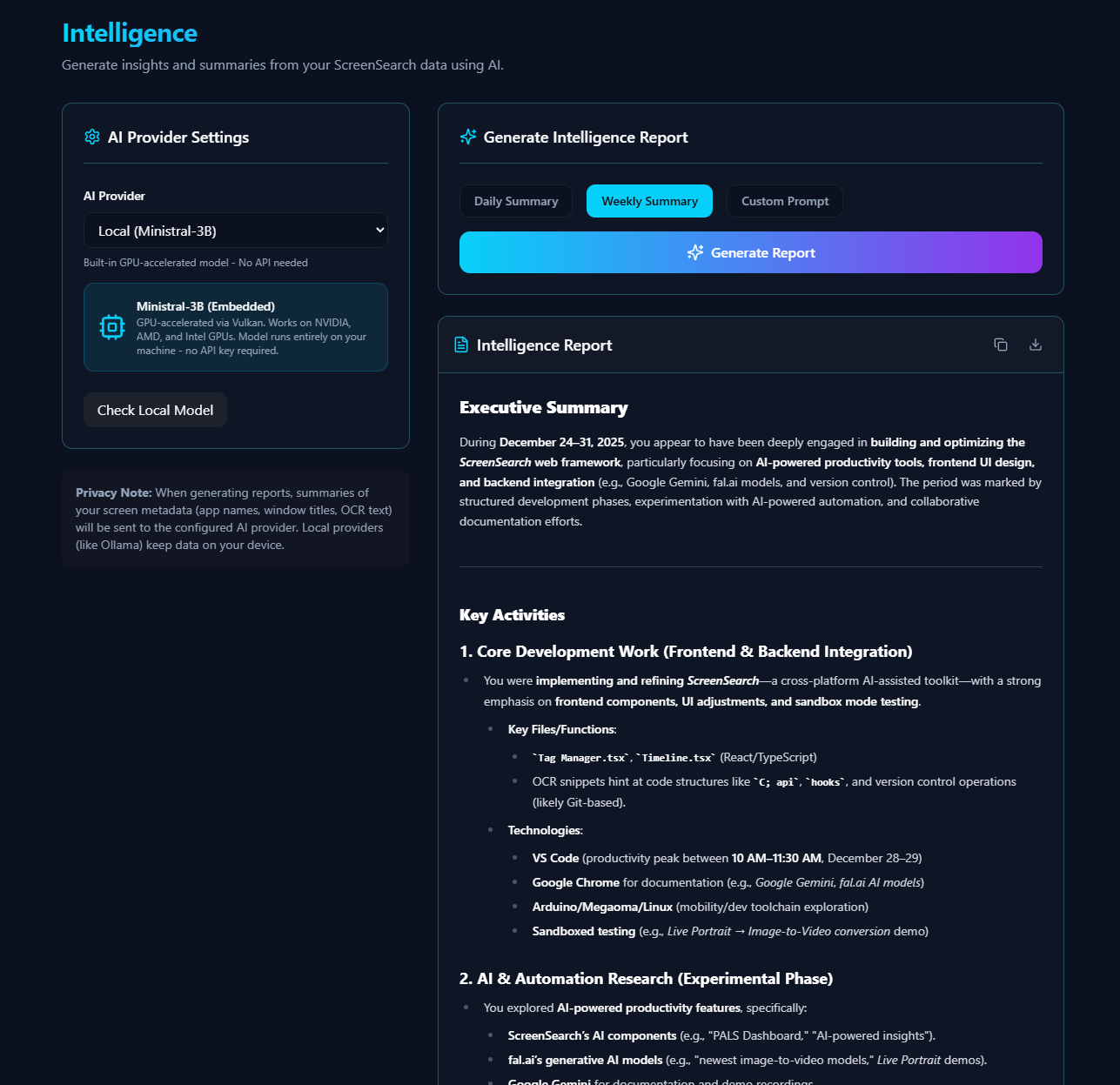
    Smart Answers turns your history into something you can talk to. Ask “what did I work on this week?” and get a written answer grounded in your real activity, with source frames you can inspect.

  4. F.04

    Your day, at a glance

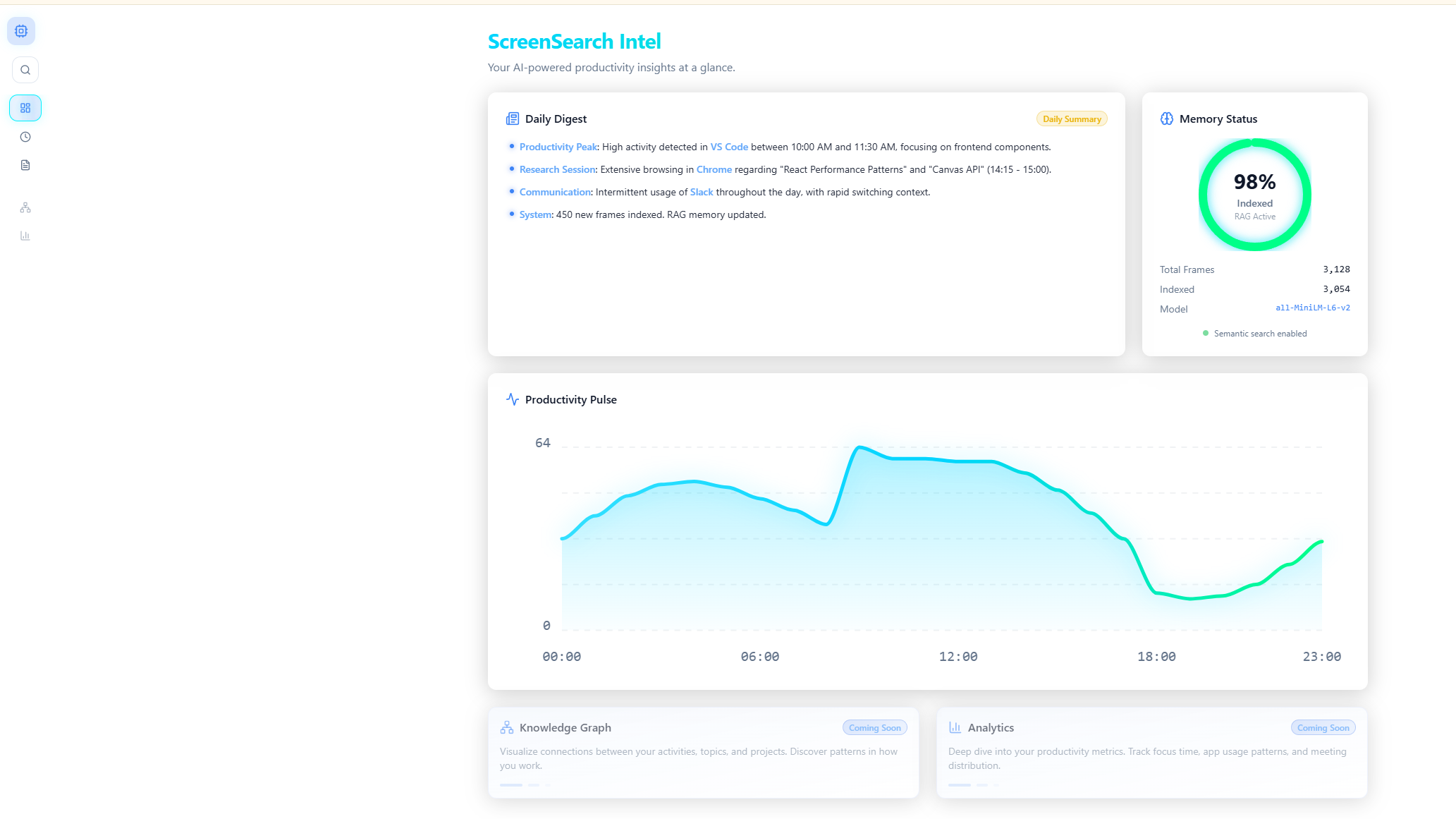
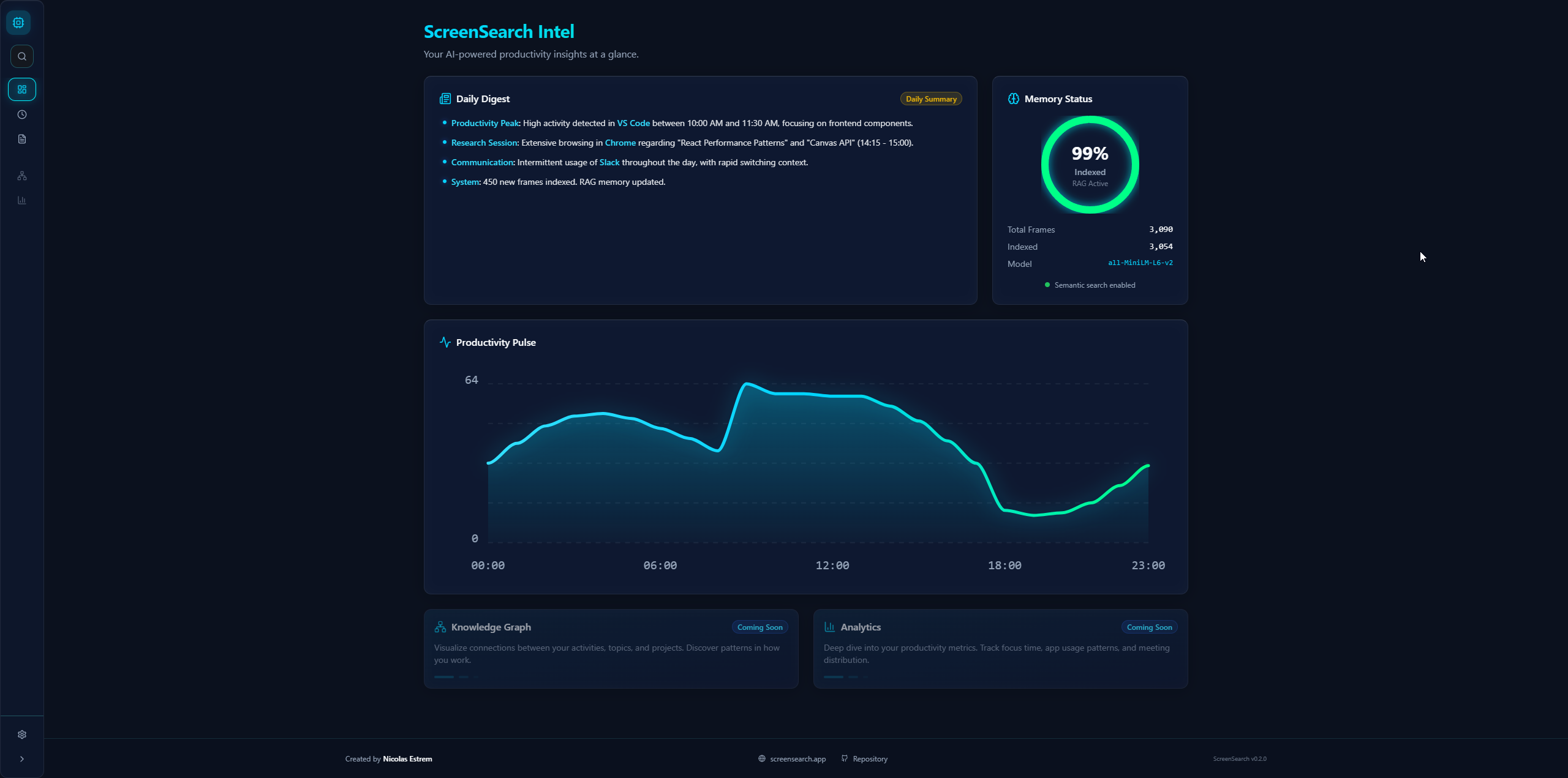
    The Command Deck gives you recent frames, capture state, enrichment progress, Recall reports, and daily summaries for the “what did I actually do today?” moment.

  5. F.05

    Vision that runs on your machine

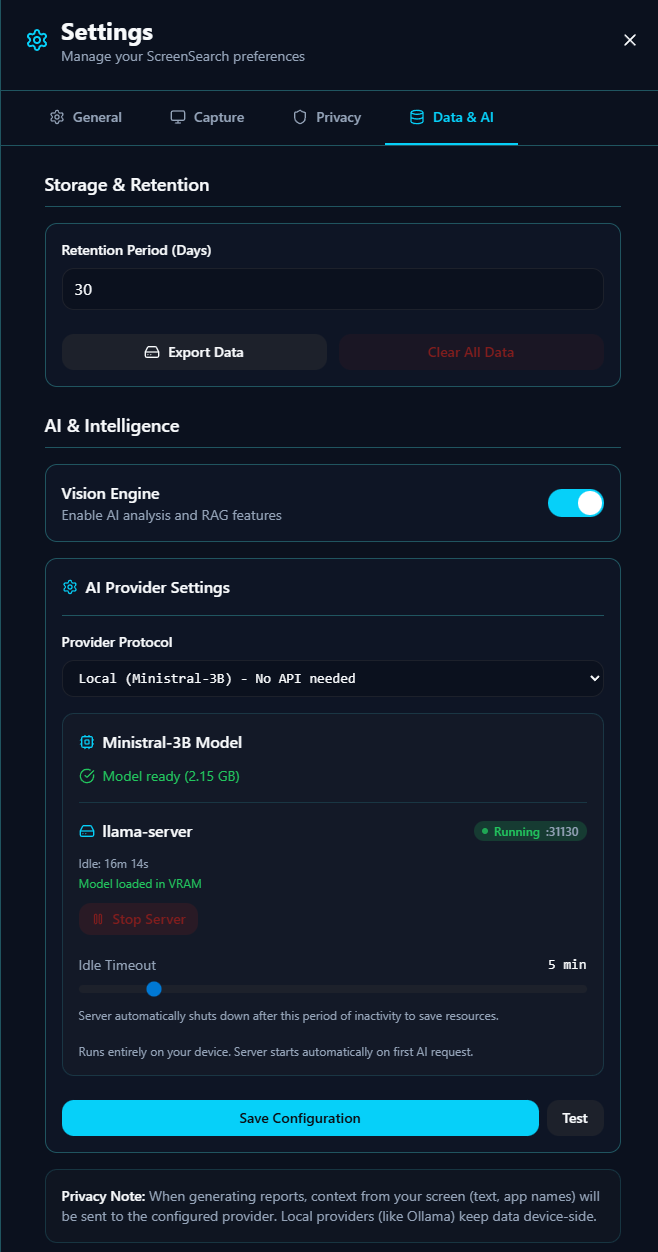
    An optional local vision model looks at each screenshot, describes it, reads text straight from the image, and classifies the activity — all on-device. No screenshots are sent anywhere.

  6. F.06

    Search by meaning, not just words

    Hybrid search fuses keyword (FTS5) and semantic vector results with Reciprocal Rank Fusion. Search “database config” and it can surface the screen that said “connection_string.”

  7. F.07

    Your AI, and your workflows

    AI answers run through the bundled local llama.cpp sidecar. Opt-in localhost API, export, and MCP surfaces let trusted local tools work with your screen memory.

03 — On the Roadmap

On the roadmap

What we’re building next — and what we’re still weighing.

Next

Where-was-I recall

A pull-based context resume surface for the “what was I doing before this detour?” moment.

Next

Mark-this-moment

A hotkey to capture now and attach an optional note when you spot something you intend to act on later.

Available

Local API and MCP

An opt-in localhost API, JSON export, and thin MCP wrapper for trusted local tools and agents.

04 — Who Uses ScreenSearch?

Who Uses ScreenSearch?

From developers to designers, ScreenSearch helps professionals recover context from captured work.

Software Developers

"What did I change in the auth flow yesterday?"

Search your coding history—documentation, StackOverflow answers, terminal commands, code reviews.

  • Find code snippets you saw but didn’t bookmark
  • Search error messages and solutions
  • Track what you worked on for standup meetings

Researchers & Academics

"Where did I see that citation?"

Build a searchable archive of research papers, articles, and sources visible during enabled capture.

  • Track citations across dozens of papers
  • Find figures and graphs you forgot to save
  • Search lecture slides and presentations

Support Engineers

"What error message did the customer send?"

Search captured support tickets, error logs, customer conversations, and shared screens.

  • Find past support conversations by keyword
  • Search error messages across reports
  • Track recurring issues and patterns

Designers & Creatives

"I saw the perfect color palette but can’t find it."

Create a visual reference library from the work captured within your settings.

  • Save design inspiration automatically
  • Search mockups and prototypes you’ve reviewed
  • Find UI patterns and layouts

Analysts & Data Scientists

"Summarize which dashboards I looked at before the board call."

Search charts, graphs, and data visualizations across all your tools.

  • Find specific charts and visualizations
  • Track down data sources
  • Search SQL queries and results

Writers & Content Creators

"I read a great quote but didn’t save the source."

Search articles, posts, and documents that appeared during enabled capture.

  • Find quotes and sources for content
  • Search research materials
  • Review draft revisions
05 — How it works

How local screen search works

Four quiet steps, running in the background on your own machine.

01

Capture

ScreenSearch takes a snapshot every few seconds (you set the interval), only when the screen actually changes. Multi-monitor included. It sits in the system tray and stays out of your way.

02

Read

Native Windows OCR pulls text from each captured frame, and an optional on-device vision model can describe what’s on screen and classify the activity. These capture and analysis steps stay local.

03

Index

Captured text and source frames land in a local database, indexed for keyword and semantic retrieval.

04

Search or ask

Type a keyword and inspect a matching moment, or ask a plain-language question and get an answer linked to the retrieved source frames.

Capture, OCR, storage, keyword search, and AI inference stay on your Windows PC, with app exclusions, retention settings, and pause/delete tools in your hands. Model downloads and signed update checks use the network without uploading your screen history.

06 — Frequently Asked Questions

Frequently Asked Questions

Everything you need to know about ScreenSearch.

+How do I search my screen history on Windows?

ScreenSearch records changed screens within your capture settings, reads visible text with UI Automation and Windows OCR, and indexes it locally. Open the Flow overlay with Ctrl+Alt+Space, then search by a word, an idea, or a plain-language question and inspect the matching source frames.

Current releases are available free from the project’s GitHub releases page and do not require an account.

+What does ScreenSearch capture, and what can I exclude?

Capture is limited to changed screens while recording is enabled. You can exclude apps, pause capture manually, rely on lock-screen auto-pause, delete captures, and choose retention settings.

Because sensitive information can still appear in an allowed app, exclude password managers, banking apps, private browsing sessions, and any other surface you do not want stored.

+How is ScreenSearch different from Microsoft Recall?

Both products make past screen activity searchable. ScreenSearch is an independent, open-source tool for Windows 10 and 11 that does not require Copilot+ hardware. It emphasizes user-controlled exclusions and retention, hybrid keyword and semantic search, a global hotkey overlay, and bundled local AI inference.

Microsoft Recall is a separate Microsoft product with its own hardware, security, and availability requirements.

+Can ScreenSearch read text from images, PDFs, and video?
When that content is visible on an enabled screen, Windows OCR can extract readable text from images, displayed PDF pages, captions, and video overlays. Results depend on image quality, text size, language support, motion, and how long the content remains visible.
+Can AI features run entirely locally?
Yes. Current releases run answer generation through a bundled llama.cpp sidecar bound to the local machine. Capture, OCR, stored frames, search indexes, retrieved context, and model requests remain on your PC.
+Does ScreenSearch send captured context to a remote AI endpoint?

No. Current releases do not expose a remote inference-provider setting. Answer generation runs through the bundled local llama.cpp sidecar. Model downloads and signed GitHub release checks use the network, but they do not upload your captured screen history.

See the privacy page for the full data-flow explanation.

+How do keyword and semantic search work together?
Keyword search finds exact words and phrases in extracted text. Semantic search can surface conceptually related wording. ScreenSearch combines both result sets, so an exact identifier can rank alongside a source frame that expresses the same idea in different words.
+What affects CPU, memory, and storage use?
Usage varies with capture interval, screen resolution and activity, OCR volume, retention, enrichment settings, model choice, and the number of stored frames. Frame differencing avoids unchanged captures, while capture controls, enrichment throttling, retention, and deletion let you tune the footprint for your PC.
07 — In use

See it in use

Capture, read, index, and ask — all running locally on your own machine.

screensearch-demo.mp4

Gallery

Selected screens from a normal day’s use.

Ready to search — and ask — your entire screen history?

Download for Windows

Windows 10/11 · No account · Local-first by default